# Media
# Pro Presenter
# Pro Presenter FAQs
1. Pro Presenter
1. Videos with a custom size on main screen needed to be set to “Stretch to Fill” instead “Scale to **Fit”** so they look correct. [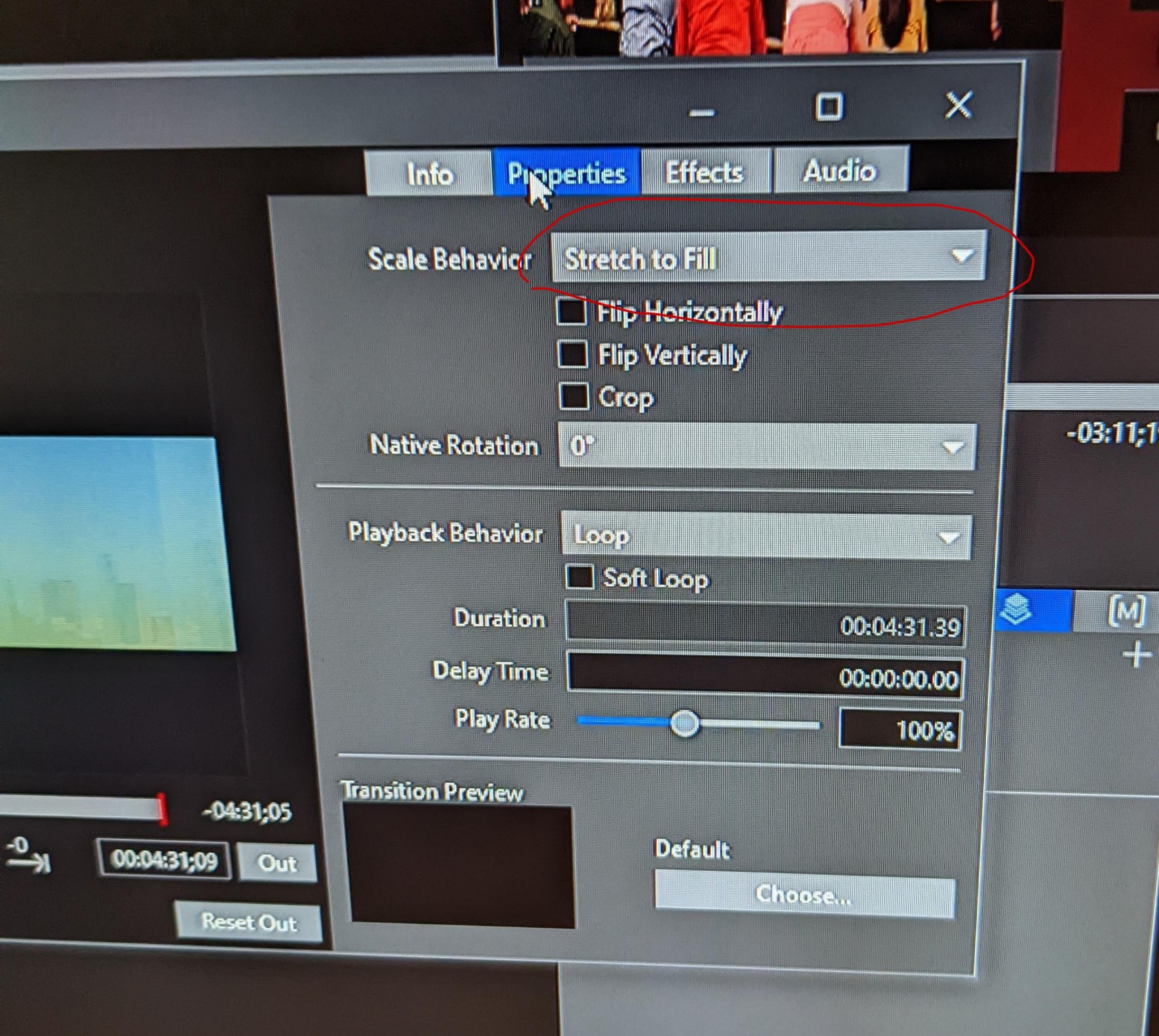](https://bookstack.goaccess.tech/uploads/images/gallery/2022-04/image-1649969549746.jpg)
2. Custom size for the main screen should be set to 2688x672 [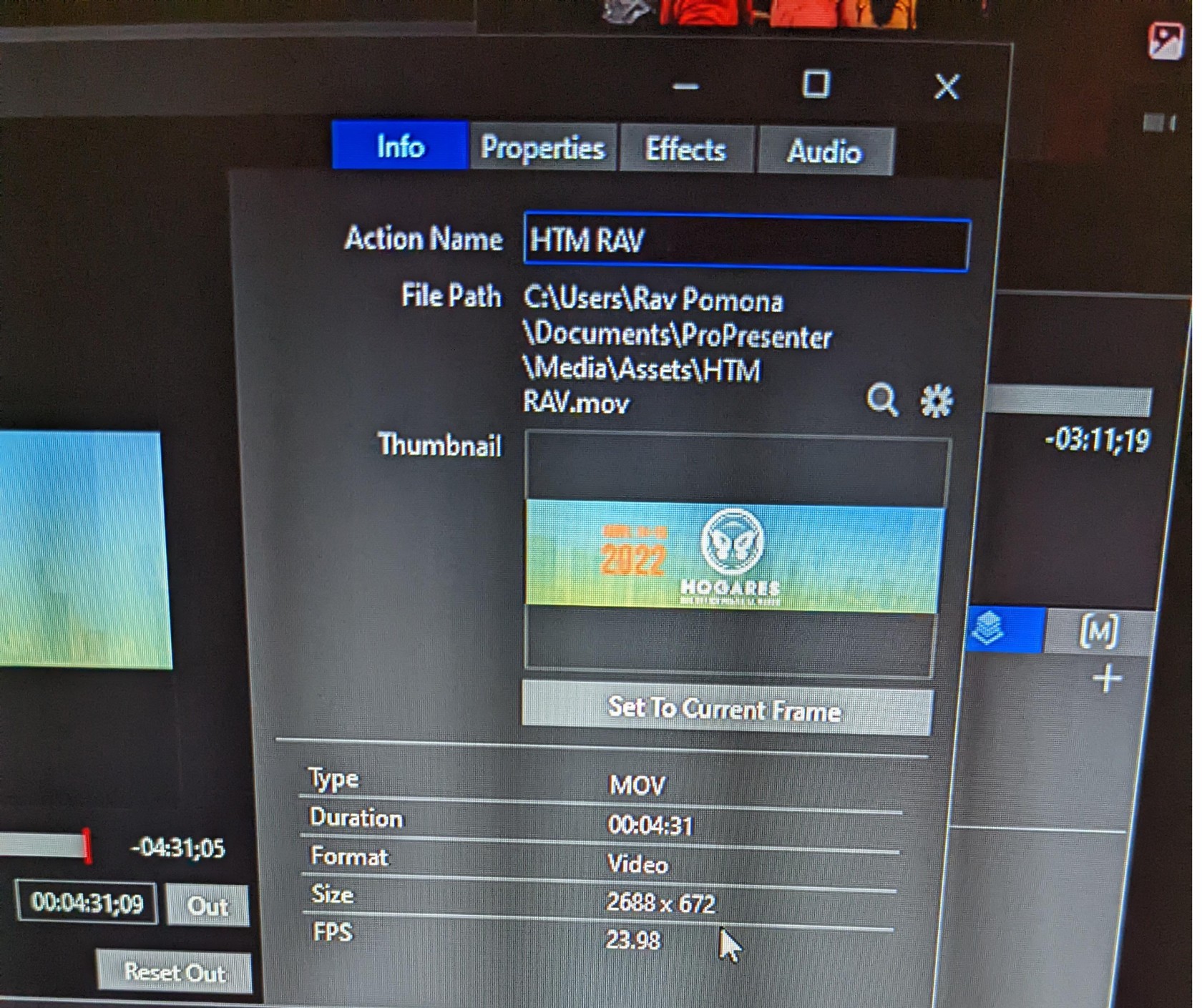](https://bookstack.goaccess.tech/uploads/images/gallery/2022-04/image-1649969269792-mp.jpg)
# Video
# Black Magic Atem Video Mixer
1. The *Black Magic Atem Video Mixer* is connected via the network with an IP address of 169.254.65.2[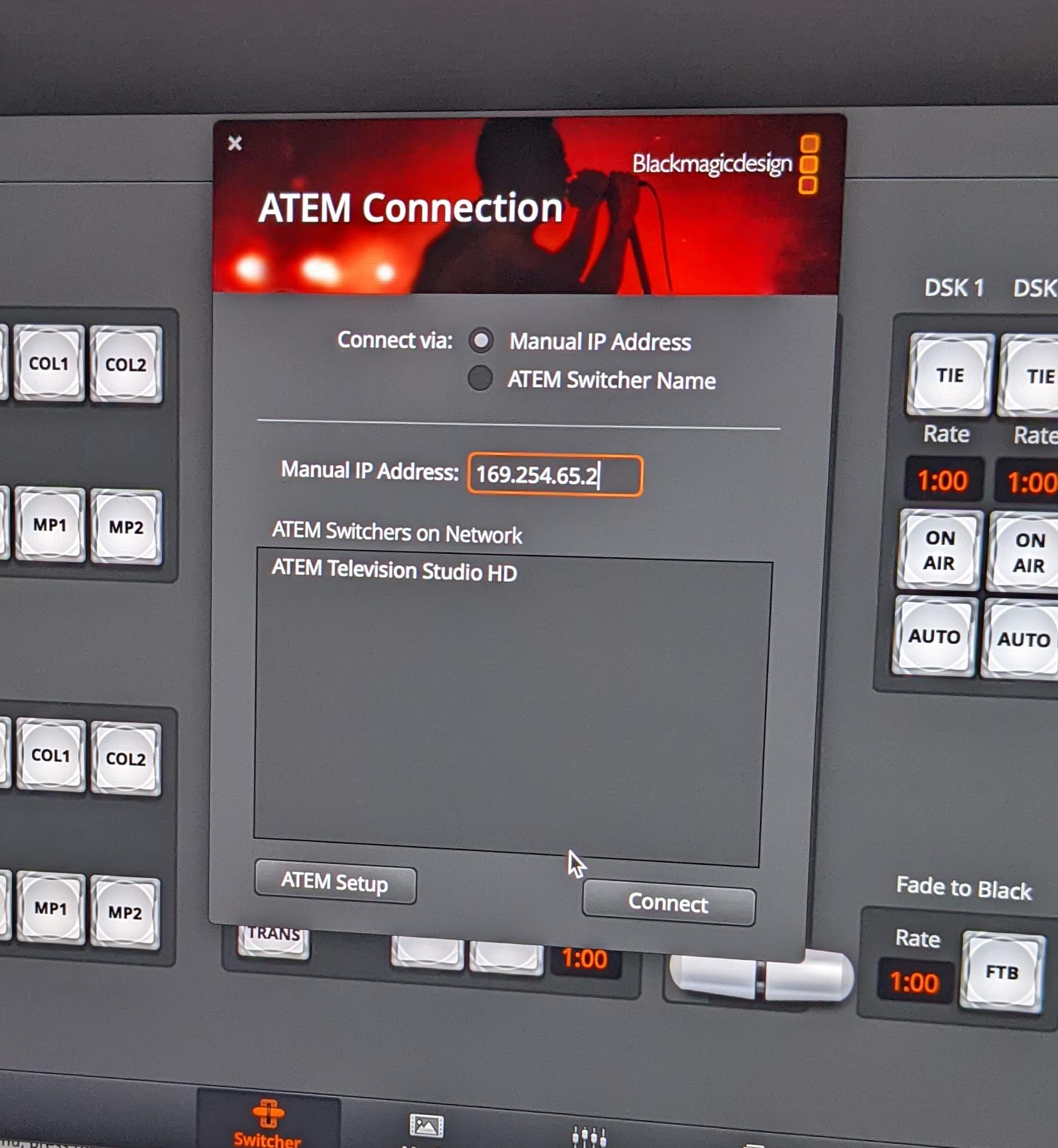](https://bookstack.goaccess.tech/uploads/images/gallery/2022-04/image-1649970712885-mp.jpg)
# Side TV Video Feeds
1. Side TVs
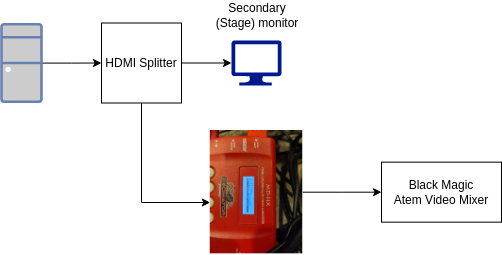
1. The side TVs are getting their signal from the secondary monitor that (know as "Stage" by Pro Presenter) via a HDMI splitter behind the main monitors.
1.
2. If NO SIGNAL check to see that the Decimater is getting a signal IF NOT
3. Then check the Secondary (Stage) monitor) and make sure refresh rate is set to 59hz.
1. The settings for the monitor refresh rate is found by right clicking on the Secondary monitors desktop and clicking on the Nvidia settings and going to your monitors resolution adjustment and looking up the refresh rate.
# Roland Mixer Flowchart