Projection
This covers common procedures related to projector department.
Checklists & Guides for Service Prep
Here you will find several checklists regarding the prep needed for a service.
Projector Guide 2025
To Start
- Start with Prayer
-
Turn ON Equipment
- Turn on Computer, and ensure the Switch Upstairs is ON (Its labeled "MAIN SWITCH") and CH. SDI 6 is selected and high-lighted in blue (You do not need to turn on the screens).
- Turn on the back TV.
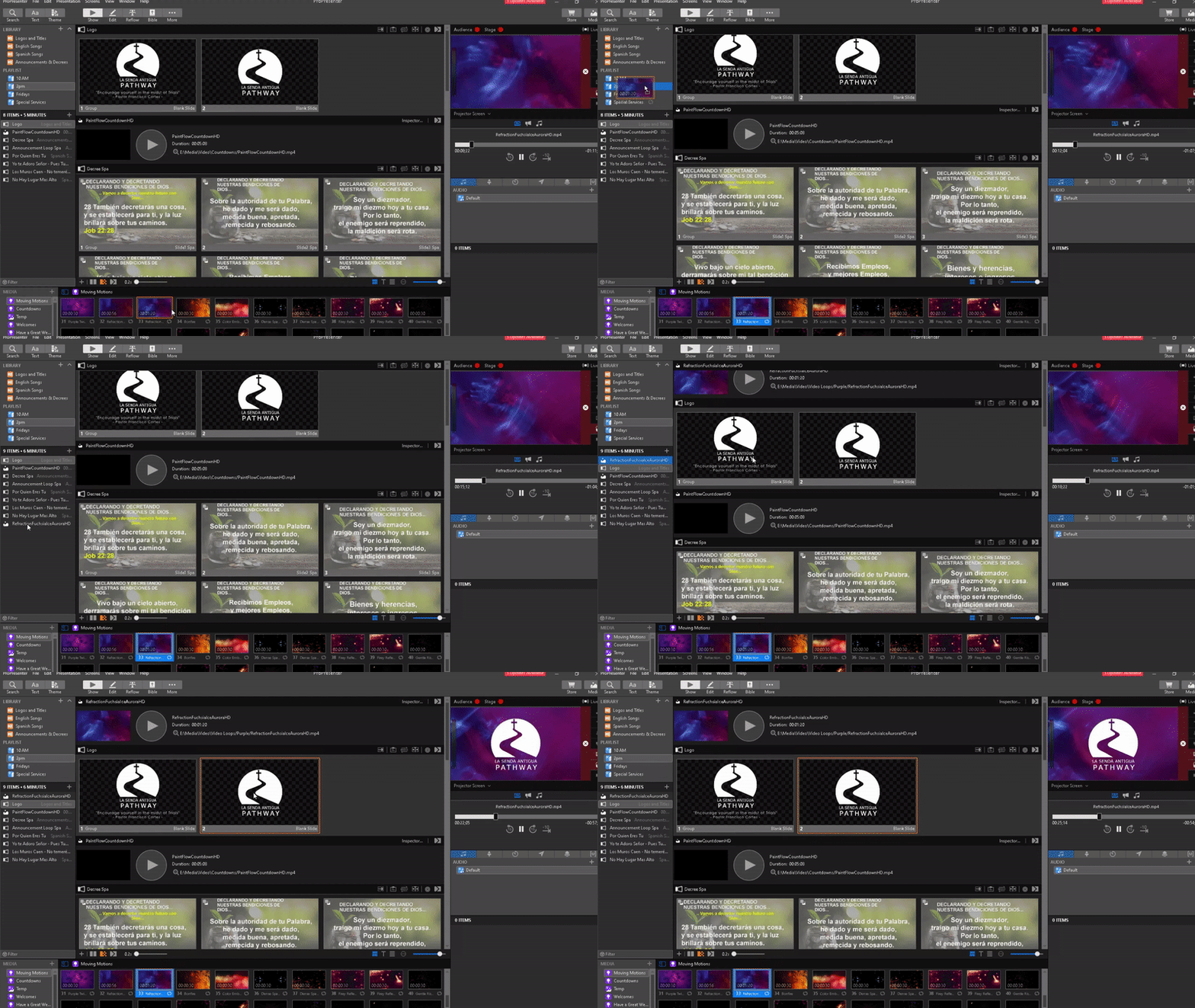
- Start Pro Presenter and set your preferred background motion with the LSA logo (the background motion should back the stage lights).
- Make sure to add your preferred background motion to the Playlist Name and NOT the Playlist itself.

- Sound Tech should match your selected color for the fill lights.
- Make sure to add your preferred background motion to the Playlist Name and NOT the Playlist itself.
- Ensure the Audience AND Stage button is green and that Pro Presenter is projecting and the Stage view is active on the back TV.
- Remove any items from the Playlist that are no longer needed (songs, videos, scriptures, etc)
-
Announcements
- Check Dropbox for the service Agenda to see what is expected for the days service.
- Check Dropbox for any Annoucements as well.
- Check the Gmail for any Cell Group Reports and or Pastor Power Points
- Check for any new announcements and or videos and drag them to the appropriate playlist.
- If for 10 AM Service then use the English version.
- If for 2 PM Service then use the Spanish version.
- If for Thursday Service, then use the Bilingual version.
- If for a Special Service, then use the Special Service version.
- Check for any new announcements and or videos and drag them to the appropriate playlist.
- If any videos are going to be shown, let the sound tech know to test and be ready.
- Check Dropbox for the service Agenda to see what is expected for the days service.
-
PowerPoints
- Download the powerpoint (cell group report, pastor powerpoint etc) to known location
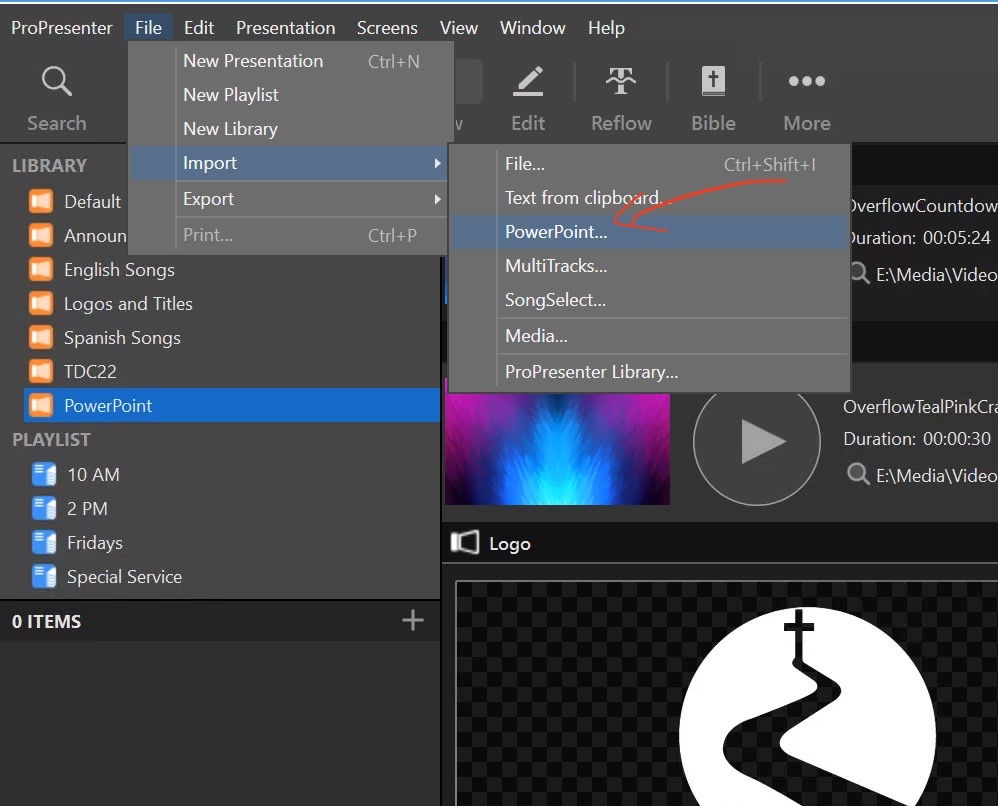
- Click on File / Import / PowerPoint..

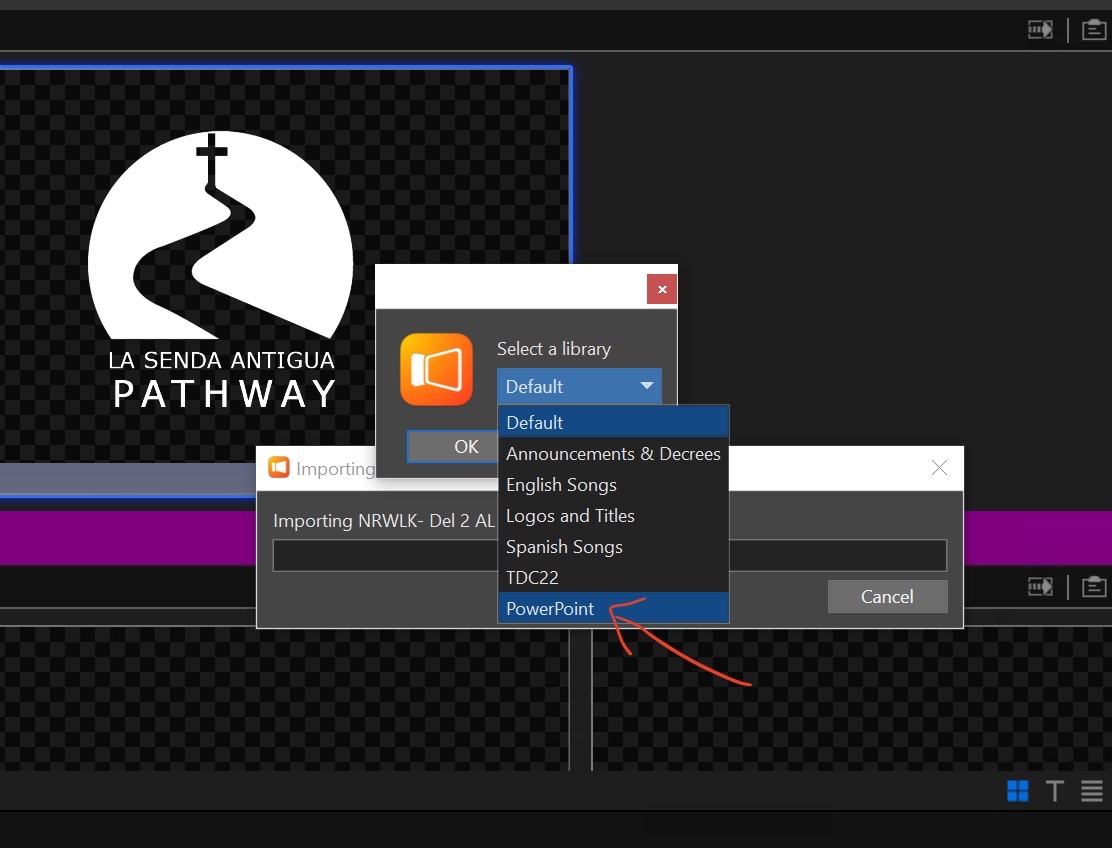
- Next you will see an import dialog and you will be prompted to select a library to save it to. Select the "PowerPoint" library and click "Ok"

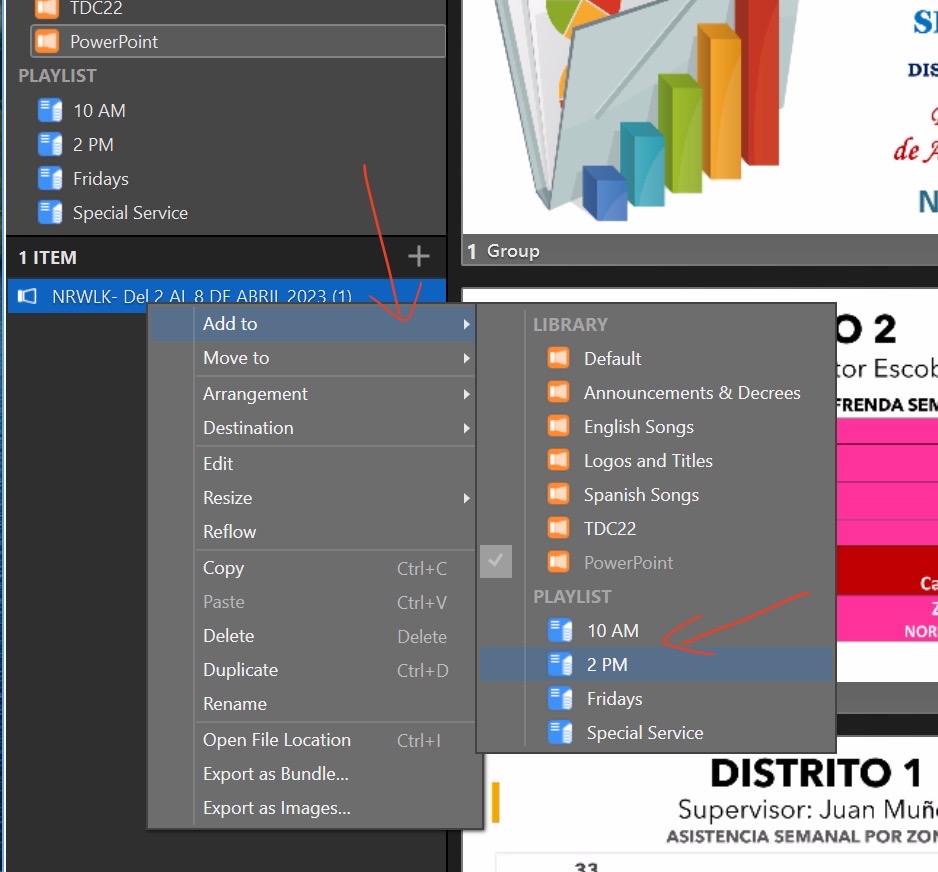
- Once imported, Right-Click the powerpoint you just imported and hover over the "Add to" and add it to the appropriate playlist.

- Next go to the playlist and move it up or down if needed according to the agenda and or when it will be shown.
- If you are showing a cell group report or any other powerpoint where the user has a remote (clicker). You must click the first slide to make it active then the user with the remote (clicker) can take control from there.
-
Music
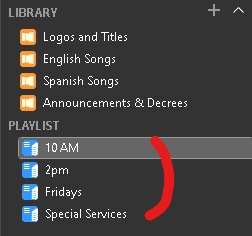
- Check your Playlist for your service in Pro Presenter (aka 10 AM, 2 PM, Thursday Playlist or Special Service)

- Check the email to make sure no songs are missing, and if there are any song updates from the music team.
- If there is a new song and do not have time to add it before service, proceed without it however, do make note of it and add it before you leave.
- Ensure all songs are shown on only two lines max.
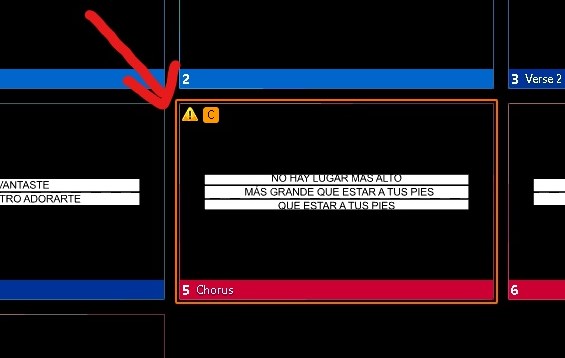
- Make sure there are no errors , these are typically caused by an extra line or too much text for a single slide.

- Check the email to make sure no songs are missing, and if there are any song updates from the music team.
- Check your Playlist for your service in Pro Presenter (aka 10 AM, 2 PM, Thursday Playlist or Special Service)
-
Scriptures
- Select the Bible module

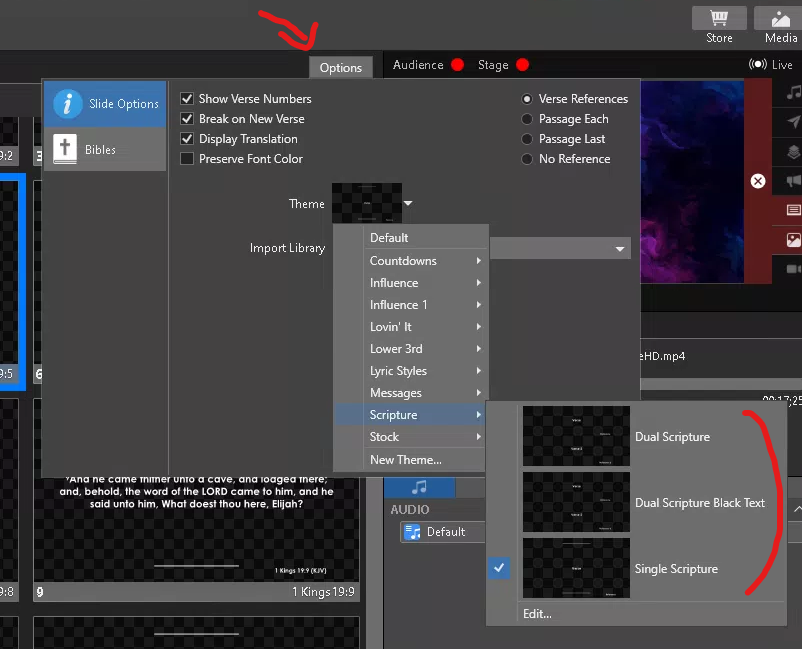
- Check to make sure your scripture template is on the correct template as well.

- 10 AM and 2 PM should be on Single Scripture.
- Thursday Services and or Special Services should be on Dual Scripture
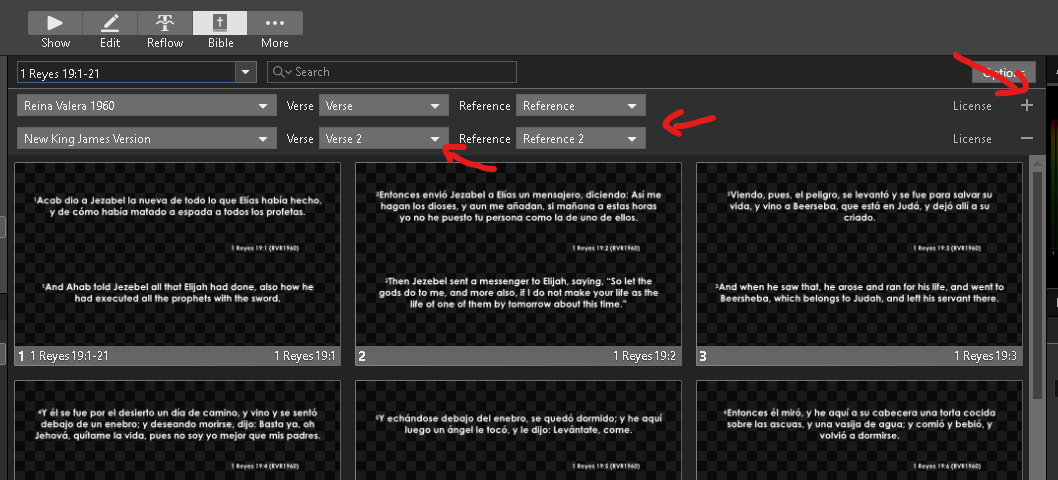
- When using Dual Scripture you have to make sure you do the following,
- Click on the + by License
- Then make sure it shows Verse 2 and Reference 2

- When using Dual Scripture you have to make sure you do the following,
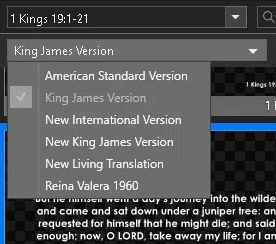
- Also make sure you are on the right translation of the bible,

- For English we use New King James Version
- For Spanish we use Reina Valera 1960
- Select the Bible module
-
Countdown
- Select your countdown and start it 5 minutes before service start.
- Sunday
- English service at 10 AM
- Spanish service at 2 PM
- Thursday
- Bilingual service at 7:30 PM
- Sunday
- Select your countdown and start it 5 minutes before service start.

To End
- Show the appropriate Announcement Loop for the service (10 AM, 2 PM or Thursday Service) for about 5 mins or until the people have cleared out.
- Close out of Pro Presenter and leave computer on.
- Turn off the display only (Benq Display)
- Turn off the Main Switch upstairs.
Thursday Prep Checklist 2024
-
Update Playlists
- Start Pro Presenter if not open.
- Remove any items from the Playlist that are no longer needed (songs, videos, scriptures, powerpoints etc)
- Open Email (open gmail in Google Chrome) and check email music list for the current week.
- Update the songs accordingly,
- for the current Thursday Service, then after service the 10 AM and 2 PM.
- for the current Thursday Service, then after service the 10 AM and 2 PM.
-
Adding a New Song
- If there are any songs that do not exists in Pro Presenter, the lyrics should have been supplied in the email or it can be found in Easy Worship.
- First, duplicate a song in Pro Presenter and, rename the title (The first letters of each main word need to be capitalized).
- Next you will copy the lyrics slide by slide so Right-Click to copy from source (Easy Worship, word doc, email, or wherever the new lyrics are found) then in Pro Presenter, Right-Click the appropriate slide and select Quick Edit,
- Then Highlight the old text, then Right-Click again and click Paste to Match Styles.
- If you run out of slides within the song, you can select the last slide and simply hit Ctrl + D and that will duplicate the slide.
- If you it looks strange or have a yellow triangle then likely there is a empty space, line or could be its too much text for the slide.
- Do not exceed TWO lines max when adding new songs.
- If the song is new and the lyrics were not supplied in the email and are not found in Easy Worship, please let the Media Director know.
- Make sure you search thoroughly
- After the song has been copied over successfully you can add the verses and chorus groups by doing the following,
- Starting from the very first slide (Top-Left), Right-Click and select Group and select verse 1 (this will mark all the slides as verse but this is expected).
- Next, Right-Click the slide where the chorus starts and select Group but this time select Chorus (this will mark all sides from that specific chorus slide and on as chorus).
- Next, select the starting slide of verse 2, Right-Click and group it as such, verse 2
- As you continue to mark the first slides of the chorus and or verses you will see the groupings / colors start to make sense.
- If there are any songs that do not exists in Pro Presenter, the lyrics should have been supplied in the email or it can be found in Easy Worship.
-
Special Considerations
- Make sure titles have the first letter capitalized,
- Correct, God is Good
- Incorrect, god is good
- Ensure new songs do not exceed two lines max.
- Always check for Spelling Errors within your service playlists.
- Ensure there are No Yellow Triangles indicating errors.
- If a song is missing, you need to make sure its added or let the Media Director know that the lyrics were not supplied via email and they are not found in Easy Worship.
- Make sure titles have the first letter capitalized,
Quick Checklist
Things to check before every service,
Pray
Make sure the Stage and Announcement buttons are green
Turn on back TV (Change Stage View for lyrics and change to mirror after worship)
Confirm you have all the correct lyrics for that service (No yellow triangles or misspelling)
Check for any outdated announcements and remove
Check to make sure you have the correct Bible loaded (Is the service bilingual?)
Check Agenda and dropbox announcements for any new content (images and or video) related to the agenda announcements
Check for any PowerPoints for pastor (This will arrive via email)
Sundays Only: Check for cell group report and load into ProPresenter (As soon as Juan goes up, show the cell group report)
Sundays Only: Attend Tag-In
Make sure the back display is ON
Remember you can use Slack (chat) to ask me questions to avoid using cell phones
Thursdays Only: Add Lyrics for Sunday
After service, Please Do Not Turn Off the Computer
Stage View Switching
Start of Service to End of Worship
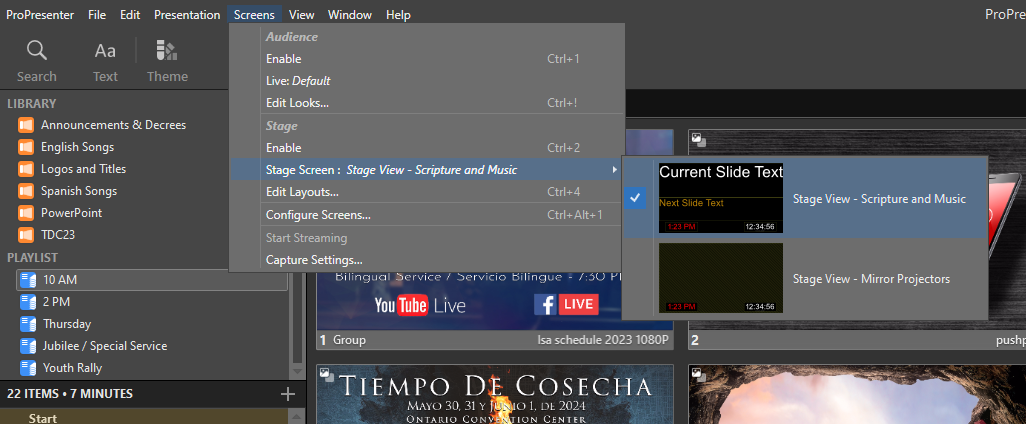
- At the start of every service ensure that the Stage View is set to, Stage View - Scripture and Music.
End of Worship to End of Service
- After worship, switch the Stage View to, Stage View - Mirror Projectors.
How to?
- Go to Screens / Stage Screen... /
- Then hover over the arrow to make your selection