Projector Guide 2025
To Start
- Start with Prayer
-
Turn ON Equipment
- Turn on Computer, and ensure the Switch Upstairs is ON (Its labeled "MAIN SWITCH") and CH. SDI 6 is selected and high-lighted in blue (You do not need to turn on the screens).
- Turn on the back TV.
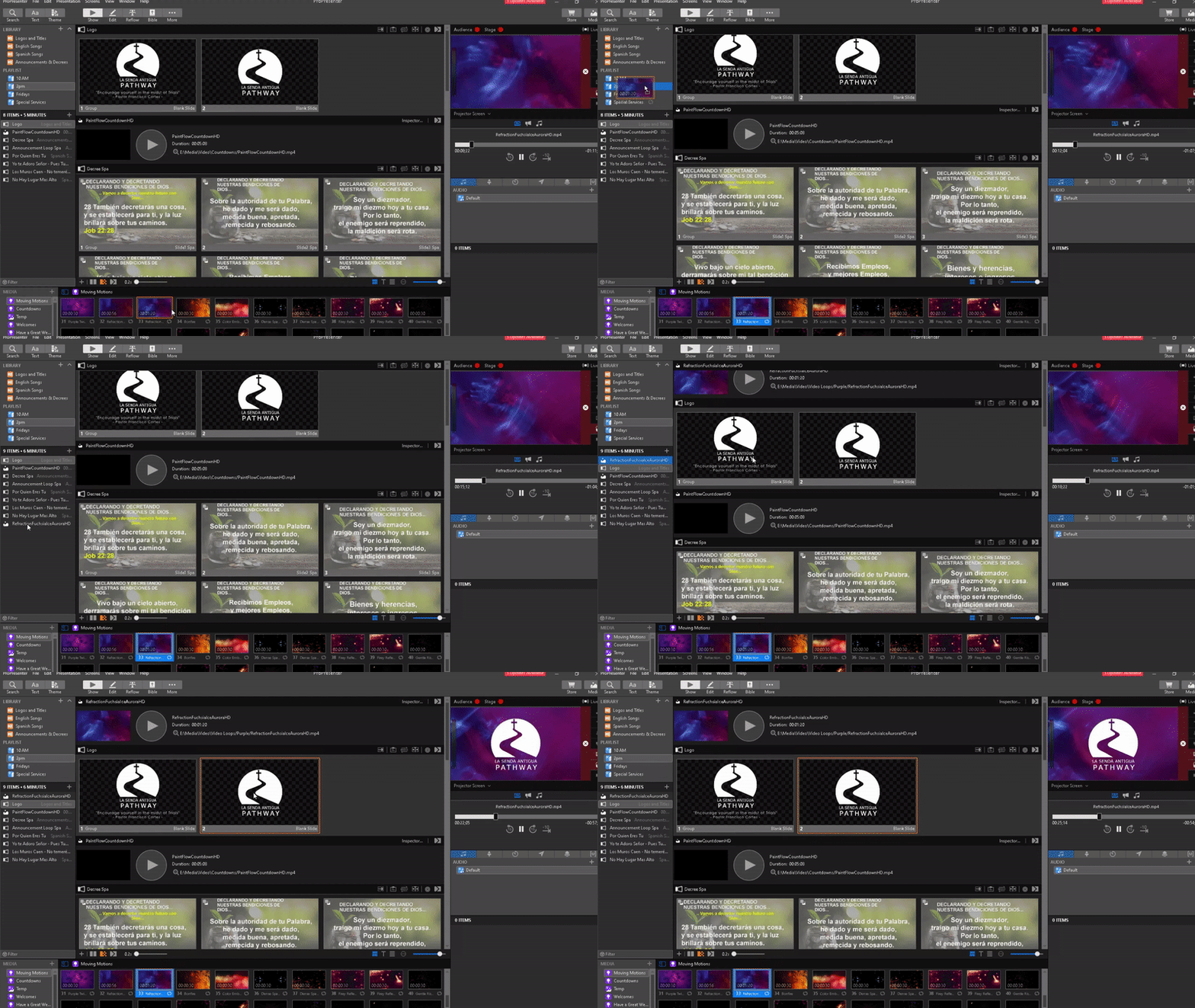
- Start Pro Presenter and set your preferred background motion with the LSA logo (the background motion should back the stage lights).
- Make sure to add your preferred background motion to the Playlist Name and NOT the Playlist itself.

- Sound Tech should match your selected color for the fill lights.
- Make sure to add your preferred background motion to the Playlist Name and NOT the Playlist itself.
- Ensure the Audience AND Stage button is green and that Pro Presenter is projecting and the Stage view is active on the back TV.
- Remove any items from the Playlist that are no longer needed (songs, videos, scriptures, etc)
-
Announcements
- Check Dropbox for the service Agenda to see what is expected for the days service.
- Check Dropbox for any Annoucements as well.
- Check the Gmail for any Cell Group Reports and or Pastor Power Points
- Check for any new announcements and or videos and drag them to the appropriate playlist.
- If for 10 AM Service then use the English version.
- If for 2 PM Service then use the Spanish version.
- If for Thursday Service, then use the Bilingual version.
- If for a Special Service, then use the Special Service version.
- Check for any new announcements and or videos and drag them to the appropriate playlist.
- If any videos are going to be shown, let the sound tech know to test and be ready.
- Check Dropbox for the service Agenda to see what is expected for the days service.
-
PowerPoints
- Download the powerpoint (cell group report, pastor powerpoint etc) to known location
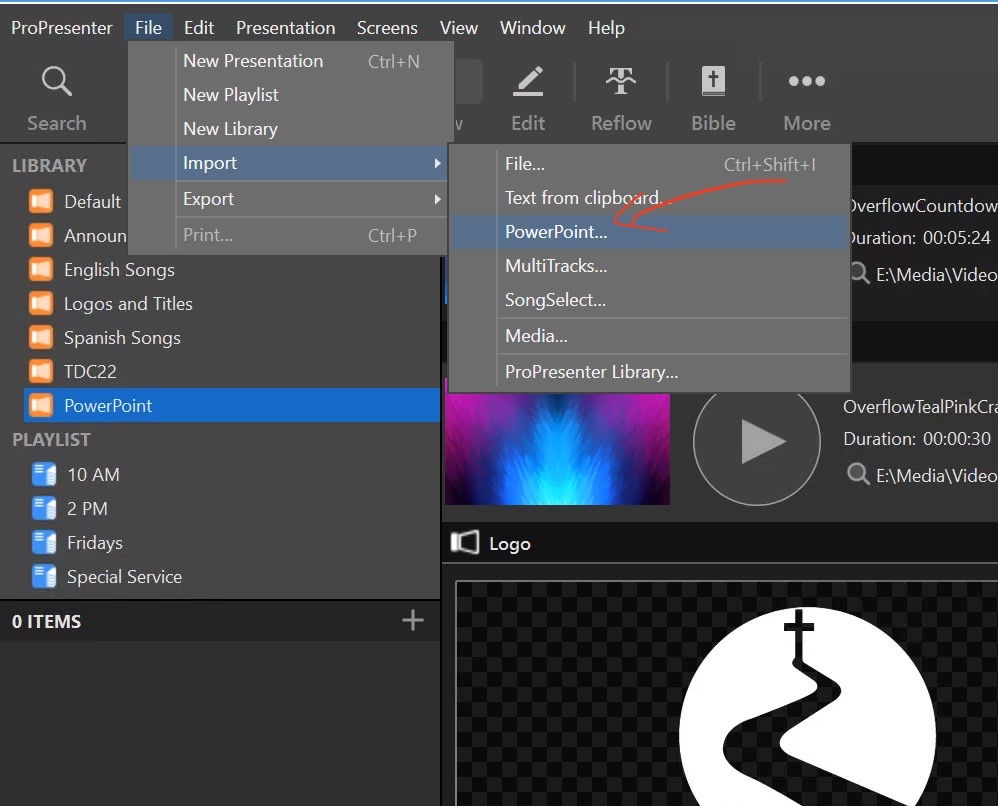
- Click on File / Import / PowerPoint..

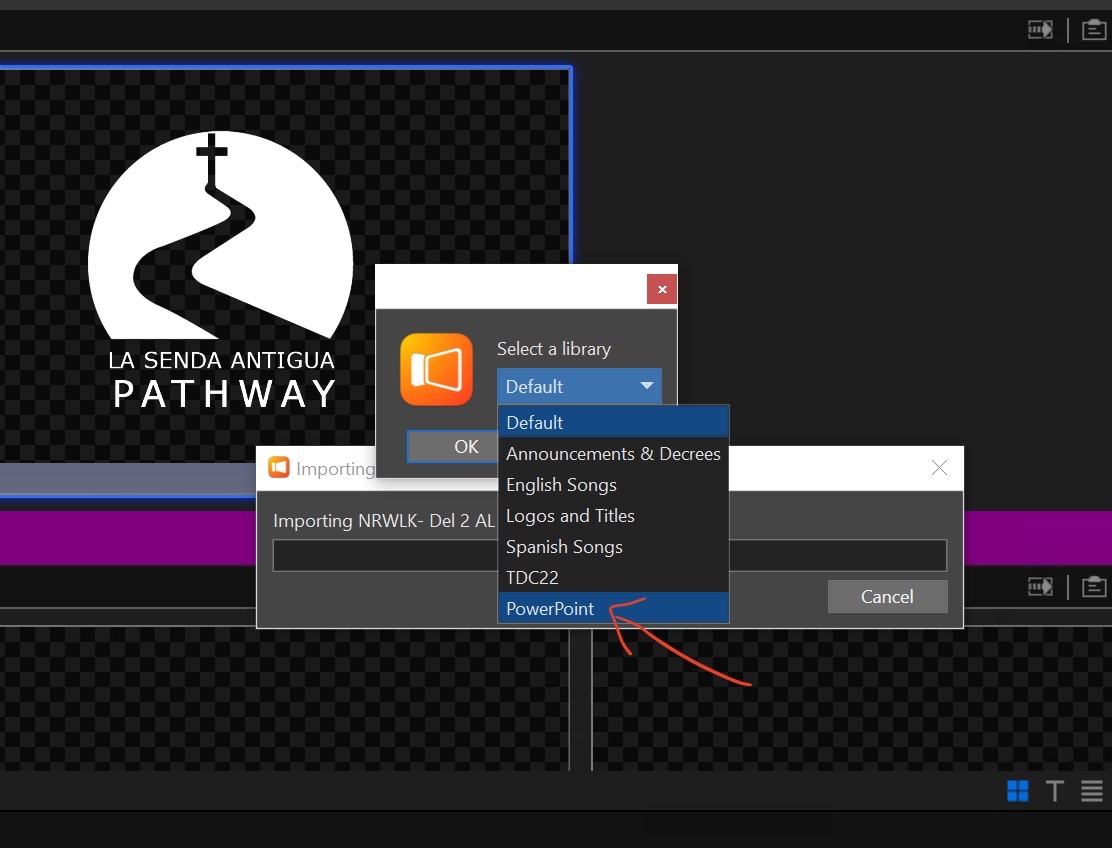
- Next you will see an import dialog and you will be prompted to select a library to save it to. Select the "PowerPoint" library and click "Ok"

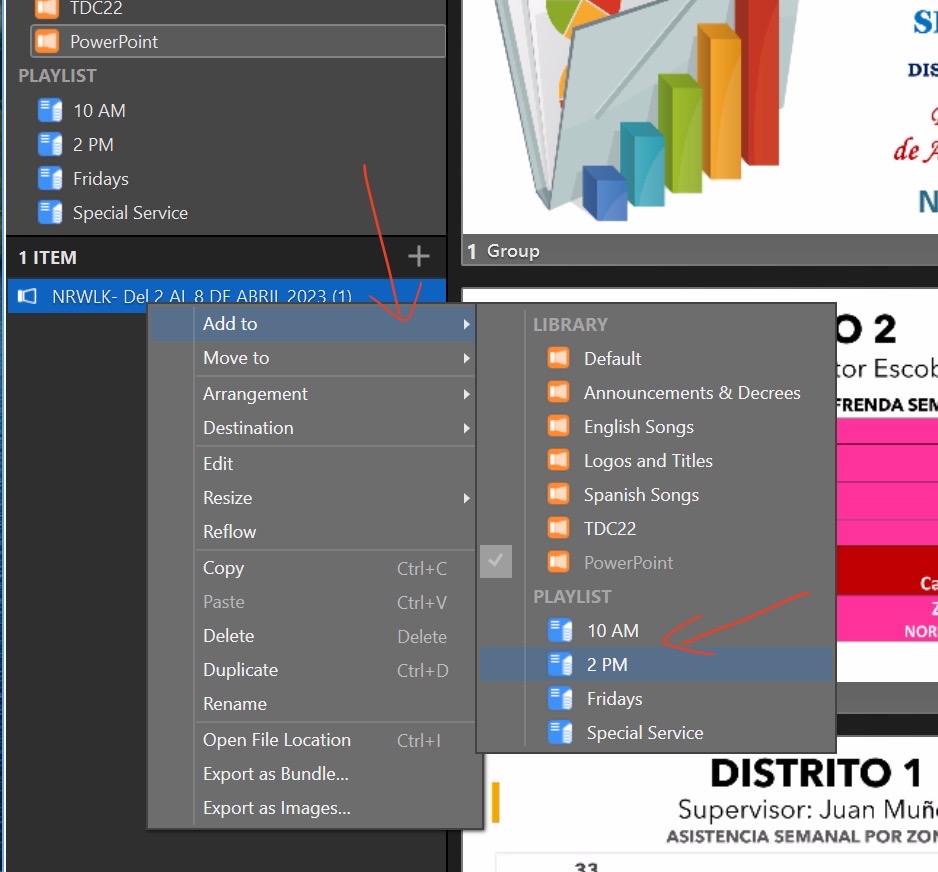
- Once imported, Right-Click the powerpoint you just imported and hover over the "Add to" and add it to the appropriate playlist.

- Next go to the playlist and move it up or down if needed according to the agenda and or when it will be shown.
- If you are showing a cell group report or any other powerpoint where the user has a remote (clicker). You must click the first slide to make it active then the user with the remote (clicker) can take control from there.
-
Music
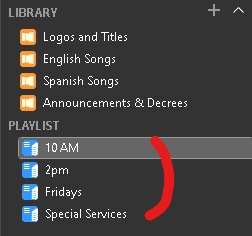
- Check your Playlist for your service in Pro Presenter (aka 10 AM, 2 PM, Thursday Playlist or Special Service)

- Check the email to make sure no songs are missing, and if there are any song updates from the music team.
- If there is a new song and do not have time to add it before service, proceed without it however, do make note of it and add it before you leave.
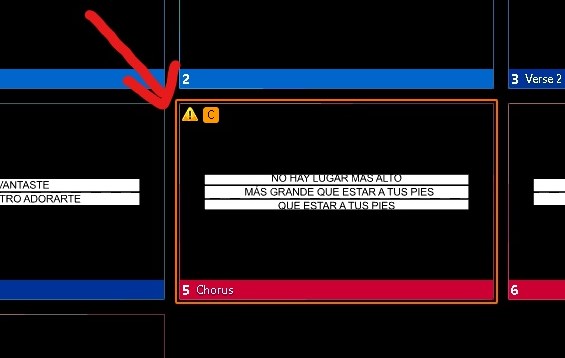
- Ensure all songs are shown on only two lines max.
- Make sure there are no errors , these are typically caused by an extra line or too much text for a single slide.

- Check the email to make sure no songs are missing, and if there are any song updates from the music team.
- Check your Playlist for your service in Pro Presenter (aka 10 AM, 2 PM, Thursday Playlist or Special Service)
-
Scriptures
- Select the Bible module

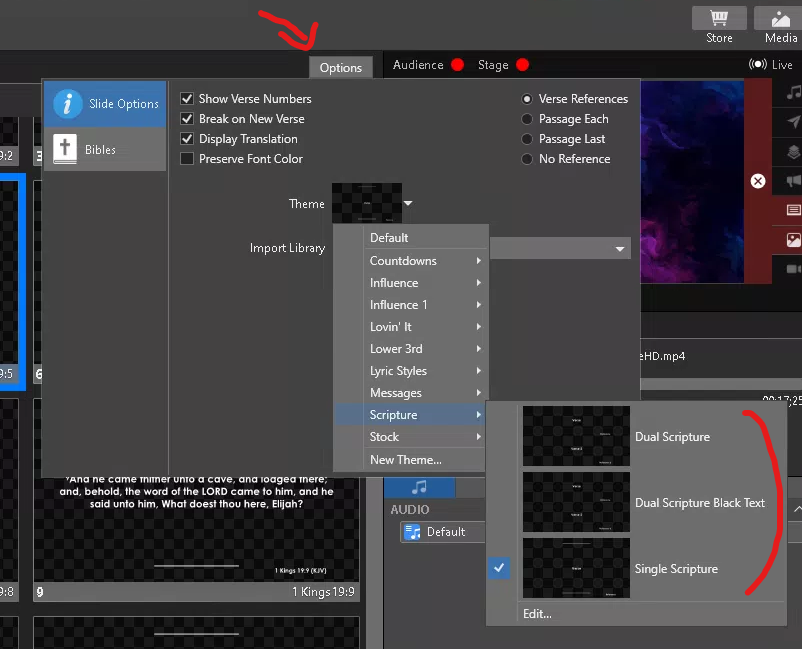
- Check to make sure your scripture template is on the correct template as well.

- 10 AM and 2 PM should be on Single Scripture.
- Thursday Services and or Special Services should be on Dual Scripture
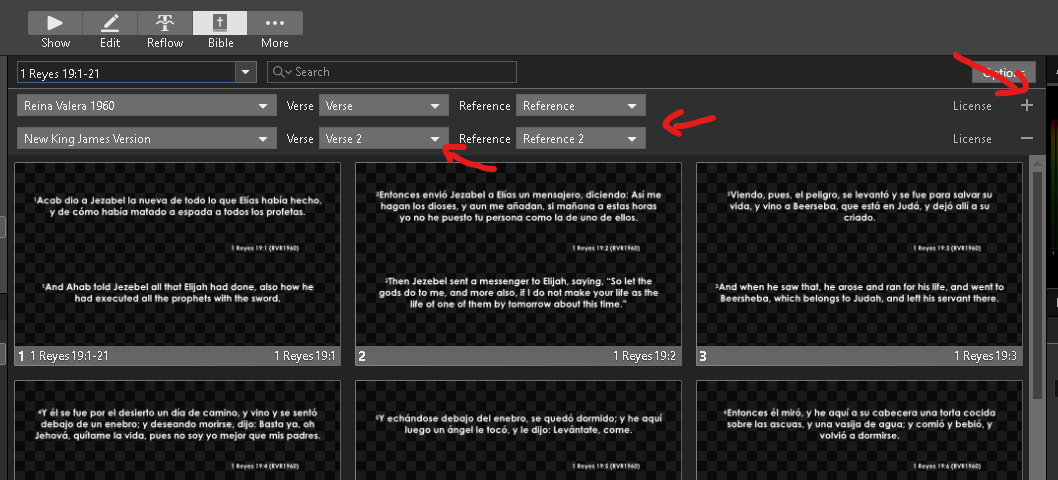
- When using Dual Scripture you have to make sure you do the following,
- Click on the + by License
- Then make sure it shows Verse 2 and Reference 2

- When using Dual Scripture you have to make sure you do the following,
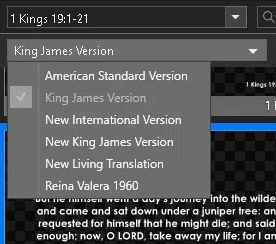
- Also make sure you are on the right translation of the bible,

- For English we use New King James Version
- For Spanish we use Reina Valera 1960
- Select the Bible module
-
Countdown
- Select your countdown and start it 5 minutes before service start.
- Sunday
- English service at 10 AM
- Spanish service at 2 PM
- Thursday
- Bilingual service at 7:30 PM
- Sunday
- Select your countdown and start it 5 minutes before service start.

To End
- Show the appropriate Announcement Loop for the service (10 AM, 2 PM or Thursday Service) for about 5 mins or until the people have cleared out.
- Close out of Pro Presenter and leave computer on.
- Turn off the display only (Benq Display)
- Turn off the Main Switch upstairs.