Thursday Prep Checklist 2024
-
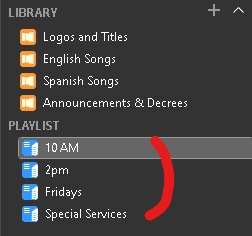
Update Playlists
- Start Pro Presenter if not open.
- Remove any items from the Playlist that are no longer needed (songs, videos, scriptures, powerpoints etc)
- Open Email (open gmail in Google Chrome) and check email music list for the current week.
- Update the songs accordingly,
- for the current Thursday Service, then after service the 10 AM and 2 PM.

- for the current Thursday Service, then after service the 10 AM and 2 PM.
-
Adding a New Song
- If there are any songs that do not exists in Pro Presenter, the lyrics should have been supplied in the email or it can be found in Easy Worship.
- First, duplicate a song in Pro Presenter and, rename the title (The first letters of each main word need to be capitalized).
- Next you will copy the lyrics slide by slide so Right-Click to copy from source (Easy Worship, word doc, email, or wherever the new lyrics are found) then in Pro Presenter, Right-Click the appropriate slide and select Quick Edit,
- Then Highlight the old text, then Right-Click again and click Paste to Match Styles.
- If you run out of slides within the song, you can select the last slide and simply hit Ctrl + D and that will duplicate the slide.
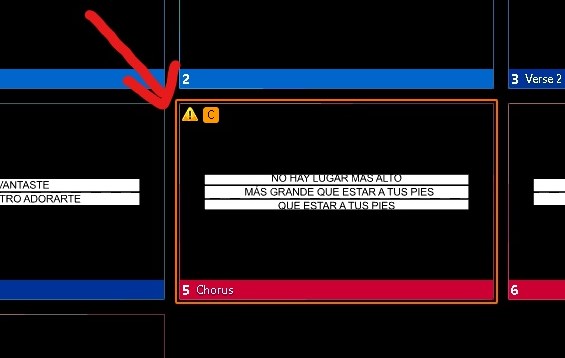
- If you it looks strange or have a yellow triangle then likely there is a empty space, line or could be its too much text for the slide.

- Do not exceed TWO lines max when adding new songs.
- If the song is new and the lyrics were not supplied in the email and are not found in Easy Worship, please let the Media Director know.
- Make sure you search thoroughly
- After the song has been copied over successfully you can add the verses and chorus groups by doing the following,
- Starting from the very first slide (Top-Left), Right-Click and select Group and select verse 1 (this will mark all the slides as verse but this is expected).
- Next, Right-Click the slide where the chorus starts and select Group but this time select Chorus (this will mark all sides from that specific chorus slide and on as chorus).
- Next, select the starting slide of verse 2, Right-Click and group it as such, verse 2
- As you continue to mark the first slides of the chorus and or verses you will see the groupings / colors start to make sense.
- If there are any songs that do not exists in Pro Presenter, the lyrics should have been supplied in the email or it can be found in Easy Worship.
-
Special Considerations
- Make sure titles have the first letter capitalized,
- Correct, God is Good
- Incorrect, god is good
- Ensure new songs do not exceed two lines max.
- Always check for Spelling Errors within your service playlists.
- Ensure there are No Yellow Triangles indicating errors.
- If a song is missing, you need to make sure its added or let the Media Director know that the lyrics were not supplied via email and they are not found in Easy Worship.
- Make sure titles have the first letter capitalized,